Sprint Reviews with Marp: Presentations as Code
Sprint review decks have a shelf life of about two weeks. You build one, present it, then build the next one — mostly from scratch. The metrics change, the charts update, the talking points shift. But the structure stays the same.
That repetition is the problem. Manually pulling numbers from Azure DevOps, rebuilding bar charts, updating summary tables — it takes time and introduces mistakes. If the deck is a PowerPoint file, diffs are meaningless and merge conflicts are impossible to resolve.
Here's the insight that makes this tractable: not everything in a sprint review is the same kind of work.
Platform development — building new self-service capabilities, golden paths, reference architectures — is project-shaped. It has objectives, milestones, design decisions, and demos. A sprint review slide for a platform initiative needs narrative: what shipped, what slipped, what the team learnt. An agent can't write that. But the template can stay fixed — same layout, same sections, filled in by the team each sprint.
BAU and operations — access provisioning, pipeline troubleshooting, infrastructure requests — is ticket-shaped. The metrics matter more than the individual items. Request counts by category, resolution time trends, SLA compliance, top requesting teams — the numbers change every sprint, the format does not. Agents query the tracker, run the calculations, and write the results straight into the deck.
Most platform teams do both. The sprint review deck reflects that split. Operations slides are agent-populated. Platform development slides use fixed templates. The whole structure lives in version control.
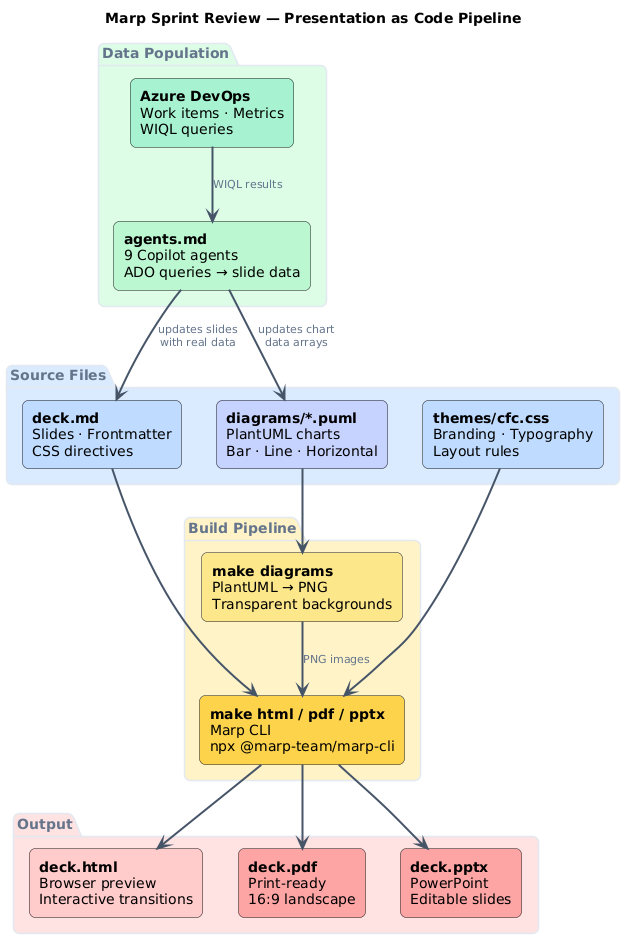
Marp solves the structural half: slides written in Markdown, version-controlled in Git, rendered to HTML, PDF, or PowerPoint. AGENTS.md solves the data half: Copilot agents that query ADO and write the numbers directly into the deck.
This post walks through both — the deck format and the automation layer on top of it.
Diffs are the hidden superpower of Markdown slides
When you update sprint metrics in a Marp deck, git diff shows exactly what changed — "Total requests: 42 → 47", "SLA compliance: 85% → 91%". In PowerPoint, that diff is invisible. A version-controlled deck gives you an audit trail of every sprint's numbers without any extra tooling. That alone is worth the migration from slide software.
What Marp does
Marp is a Markdown-based presentation framework. You write slides in a .md file, add a YAML frontmatter block for configuration, and use --- to separate slides. The Marp CLI converts the Markdown to HTML, PDF, or PPTX.
A minimal slide deck:
---
marp: true
theme: default
paginate: true
---

# Slide One

Content goes here.

---

# Slide Two

More content.
That produces a two-slide deck with pagination. No drag-and-drop, no binary format, no GUI.
Why this matters for sprint reviews
- Diffs work. When you update metrics,
git diffshows exactly what changed — "Total requests: 42 → 47". PowerPoint diffs are opaque. - Templates carry forward. The slide structure persists across sprints. You update the data, not the layout.
- Build pipeline.
make htmlproduces a browser preview.make pdfproduces a print-ready output.make pptxproduces a PowerPoint for stakeholders who need one. One source, three formats. - No context switching. The deck lives in VS Code alongside the
agents.mdthat populates it.
Deck structure
A production sprint review deck uses frontmatter to configure the theme, transitions, and language:
---
title: "Platform Engineering Sprint Review"
marp: true
theme: copernicus
transition: fade
size: "16:9"
lang: en-GB
paginate: true
header: "Platform Engineering"
---
The theme: copernicus directive loads a custom CSS theme from a themes/ directory. This keeps branding consistent without embedding styles in every slide. The Marp community themes page is a good starting point; drop any .css file into a local themes/ folder and reference it by filename.
Slide content
Slides use standard Markdown — headers, bullet lists, tables, images. Marp adds a few directives for layout control:
<!-- _class: title -->
# Sprint Review
---
## DD Month YYYY

The _class: title directive applies a CSS class to that slide only. bg right:40% places a background image on the right side of the slide.
Tables render natively:
| Category              | Count | % of Total |
|-----------------------|-------|------------|
| Access & Permissions  | 12    | 28%        |
| Pipeline & CI/CD      | 9     | 21%        |
| Azure Resources       | 7     | 16%        |
No chart plugins, no embedded objects — plain text that any editor can open.
PlantUML charts in slides
Static tables work for summaries. For visual metrics — category distributions, resolution time trends, team volumes — PlantUML charts generate PNGs that slot directly into slides.
A bar chart for request distribution:
@startchart
title Request Category Distribution

bar "Category" [
  "Access & Perms" 12,
  "Pipeline" 9,
  "Azure Config" 7,
  "Infra Setup" 6,
  "APIM" 4,
  "DR" 2,
  "Other" 2
] #3498db labels

@endchart
Running PlantUML converts this to a PNG with a transparent background:
The slide references the generated image:
The chart data is plain text in a .puml file. When the agent updates the numbers, git diff shows "Access & Perms" 12 → "Access & Perms" 15. Try that with an embedded Excel chart.
Chart types used
The sprint review deck uses six PlantUML charts:
| Chart | Type | Shows |
|---|---|---|
| Request distribution | Horizontal bar | Category breakdown |
| Resolution time trends | Line | Daily averages over 14 days |
| Request complexity | Bar | Simple / Medium / Complex split |
| Request lifecycle SLA | Horizontal bar | Stage timings in hours |
| Requestor patterns | Horizontal bar | Top 5 requesting teams |
| Top teams volume | Horizontal bar | Team request volumes |
All six are generated with make diagrams, which runs PlantUML across every .puml file in the diagrams/ directory.
Apply this: separate narrative slides from data slides in your deck structure
The two-type model works best when it's structurally visible in the deck. Name your platform development slides with a fixed marker (<!-- PROJECT -->) and your operations slides with a data marker (<!-- OPS - auto-populated -->). This makes it obvious to anyone opening the file which slides the agent owns and which the team fills in. It also prevents the agent from accidentally overwriting a hand-written narrative section.
How AGENTS.md populates the deck
The taxonomy post covered what AGENTS.md files do. The ADO practice post showed WIQL query patterns. This deck uses both.
An agents.md file sits alongside deck.md in the repo. It defines nine agents, each responsible for a specific section of the deck. Three tracker-specific variants are available in the repo:
| Tracker | File | Query language |
|---|---|---|
| Azure DevOps | agents.md |
WIQL |
| GitHub Projects | agents-github.md |
GraphQL |
| Jira | agents-jira.md |
JQL |
The structure is identical across all three — same nine agents, same master agent, same deck update targets. Only the query language and field names differ.
The workflow:
- Open the relevant
agents.mdfor your tracker in VS Code - Ask Copilot: "Run Master Agent: Populate All Diagrams and Slides"
- The master agent runs each sub-agent in sequence
- Each sub-agent queries your tracker via MCP, then writes the results into
deck.mdor a.pumlfile - Run
make diagramsto regenerate PNGs - Run
make htmlto preview
Agent examples
Agent 5 — Requestor Patterns queries ADO for all Requests in the current sprint, groups by requesting team, counts totals, and updates diagrams/requestor-patterns.puml with the top five teams:
Steps:
1. Query ADO for all Requests from last 2 weeks
2. Extract requesting team from Custom.RequestedTeamName
3. Group by team, count requests
4. Update bar data array in requestor-patterns.puml
The WIQL query:
SELECT [System.Id], [System.Title], [Custom.RequestedTeamName]
FROM WorkItems
WHERE [System.WorkItemType] = 'Request'
  AND [System.AreaPath] UNDER @AreaPath
  AND [System.CreatedDate] >= @StartDate
The @AreaPath parameter is defined once in the agents.md configuration block, so the same agents work across different teams without editing every query.
Agent 6 — Request Metrics Summary does arithmetic: counts by category, calculates SLA compliance percentages, finds the peak request day, then writes a Markdown table into the "Operations Overview" slide of deck.md.
Agent 8 — Key Insights compares the current sprint against the previous one. It calculates resolution time changes, SLA shifts, and volume trends, then updates the "Key Insights & Improvements" slide with data-backed bullet points.
The master agent
A master agent orchestrates the others:
Steps:
1. Calculate start date (2 weeks ago)
2. Ask user for permission to query ADO
3. Run Agent 5: Update Requestor Patterns
4. Run Agent 6: Update Request Metrics Summary
5. Run Agent 8: Update Key Insights
6. Report summary of updates
7. Suggest running 'make diagrams'
Each agent asks for confirmation before writing. The master agent handles sequencing and error recovery — if one agent fails (say, ADO returns no data for a category), it reports the issue and moves to the next.
The stale placeholder tell
The most common failure mode in agent-populated decks is a slide that still shows last sprint's numbers because one agent silently returned no data and left the previous values in place. Add a freshness check: after the master agent runs, scan deck.md for any placeholder patterns (e.g. <!-- UPDATE --> markers or dates older than 14 days). If found, flag it before presenting — stale numbers in a sprint review erode trust fast.
The build pipeline
The Makefile (macOS/Linux) and make.bat (Windows) handle the full pipeline:
# Generate all outputs
make all        # diagrams + HTML + PDF + PPTX

# Individual targets
make diagrams   # PlantUML → PNG
make html       # Marp → HTML (fast preview)
make pdf        # Marp → PDF
make pptx       # Marp → PowerPoint
make html produces a self-contained HTML file you can open in a browser. Slide transitions work. Navigation works. Presenter notes show up in presenter mode (P key). It runs in under two seconds.
make pptx produces a real PowerPoint file for stakeholders who need to open it in Office. The formatting isn't pixel-perfect — Marp-to-PPTX conversion has limitations — but it's close enough for most uses.
Sprint workflow
A typical two-week cycle:
- Sprint start — Run the master agent to populate the deck with data from the previous sprint (or stub in the current sprint dates).
- During the sprint — No deck work needed. Focus on delivery.
- Sprint end — Run the master agent again. It pulls fresh ADO data — completed requests, resolution times, SLA figures — and writes everything into
deck.mdand the.pumlfiles. - Review prep —
make allgenerates HTML for presenting and PDF/PPTX for distribution. Add any manual commentary (demo notes, shout-outs) directly indeck.md. - Present — Open the HTML in a browser. Use
Ffor full-screen,Pfor presenter mode. - Archive — Commit and push. The deck is versioned. Next sprint, reset the data and start again.
Total manual effort: running the master agent and adding commentary. The charts, tables, and metrics fill themselves.
Getting started
To set up a similar deck:
- Install Marp CLI:
npm install -g @marp-team/marp-cli - Install PlantUML: Download the snapshot JAR to
~/tools/plantuml-snapshot.jar - Create
deck.md: Start with the frontmatter block from above, add---separators for slides - Pick your
agents.md: Useagents.mdfor ADO,agents-github.mdfor GitHub Projects, oragents-jira.mdfor Jira. Set the configuration block at the top (area path, project key, or repo owner) and all nine agents pick it up. - Add a
Makefile: Wire upmarpandplantumlcommands - Run the workflow: Agent → data →
make all→ present
The AI Convention Files taxonomy covers the full set of file types available. The ADO practice post has WIQL query patterns you can adapt.
Companion resources
A working starter — deck.md template, PlantUML chart files, Makefile, and generate-deck.sh — is in the ai-capabilities repo. The nine-agent workflow is available for all three major trackers:
agents.md— Azure DevOps (WIQL)agents-github.md— GitHub Projects v2 (GraphQL)agents-jira.md— Jira (JQL + Agile API)
Further reading:
- Marp CLI
- PlantUML chart syntax
- AI Convention Files: The Complete Taxonomy
- AI Convention Files in Practice: Azure DevOps
Frequently asked questions
Does Marp work on Windows, or is it Mac/Linux only?
Marp CLI is cross-platform — it runs on Windows, macOS, and Linux via Node.js. The Makefile in the companion repo uses standard Unix commands; for Windows use the included make.bat instead. PlantUML requires Java, which is also cross-platform. The VS Code Marp extension provides a live preview that works identically across all platforms.
Can I use a custom theme that matches our company branding?
Yes — drop any CSS file into a themes/ directory and reference it in the deck frontmatter with theme: your-theme-name. The Marp CSS spec supports custom fonts, colour palettes, and slide classes. The copernicus theme used in these examples is a custom theme defined in the companion repo; you can use it as a starting point and swap in your brand colours.
What happens if the agent updates deck.md with wrong numbers?
Every agent asks for confirmation before writing: "Update deck.md with these metrics? (yes/no)". Review the calculated numbers before approving. If wrong numbers do get written, git diff shows exactly what changed and git revert or git checkout restores the previous version in one command. This is the core value of keeping the deck in Git rather than a shared drive file.
Do all three tracker versions (ADO, GitHub, Jira) use exactly the same deck structure?
Yes — the nine-agent workflow and deck structure are identical across all three. Only the query language and field names differ (WIQL vs GraphQL vs JQL). You can run your review prep against whichever tracker your team uses without changing the slide template. The companion repo has all three agents.md variants alongside a single deck.md template.
How do you handle the PlantUML chart generation on CI — is Java required in the pipeline?
Yes — make diagrams calls the PlantUML JAR, which requires Java. For CI, either include a Java installation step or pre-generate the PNGs locally and commit them alongside the .puml source files. Most teams commit generated PNGs to Git (the source .puml is the truth; the PNG is the render) and only regenerate in CI when a .puml file changes.